September 15, 2026
Free Employee Attendance Sheet Template – Excel & Google Sheets
Why a Free Attendance Sheet Template Is a Game‑Changer for Any Business
Accurate attendance data is the backbone of reliable payroll, compliance reporting, and workforce planning. Yet many small‑to‑mid‑size businesses still rely on manual paper registers or ad‑hoc spreadsheets that are prone to errors, time‑consuming updates, and inconsistent formatting. A well‑designed attendance sheet template solves these problems by delivering a ready‑made structure, built‑in calculations, and visual cues that keep HR teams on track.
When the template is offered for free in both Microsoft Excel and Google Sheets, organizations gain flexibility: they can work offline with Excel’s powerful formula engine or collaborate instantly in Google Sheets without worrying about version conflicts. Below we explore the essential features of the most popular free templates, walk you through the download‑and‑customize process, and share best‑practice tips that turn a simple sheet into a strategic HR tool.
What Makes a Good Attendance Template?
A high‑quality attendance workbook typically includes the following components:
- Standardized columns – employee name, department, date, status codes (P, A, L, SL, VL, etc.), and optional time‑in/out fields.
- Dropdown lists for status codes to minimise data‑entry errors.
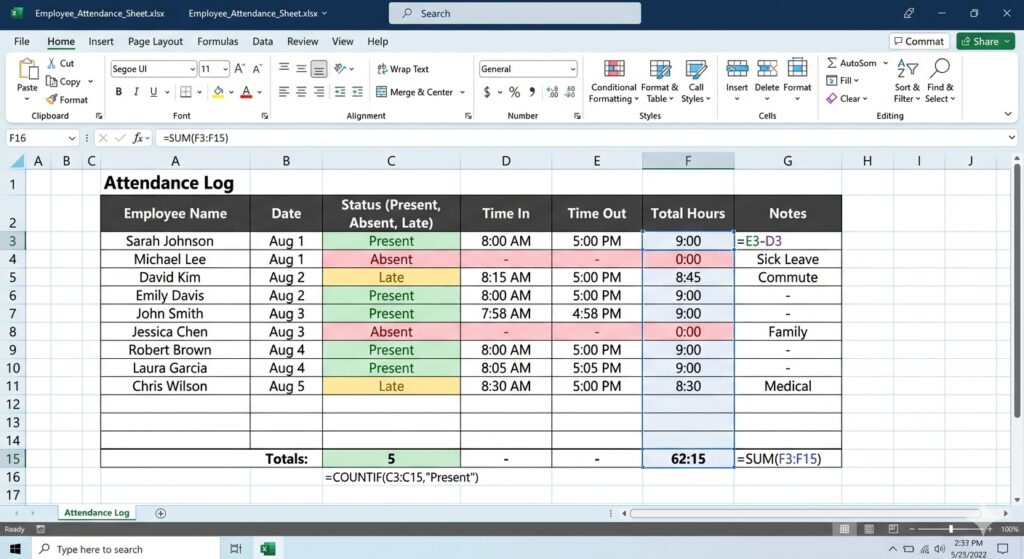
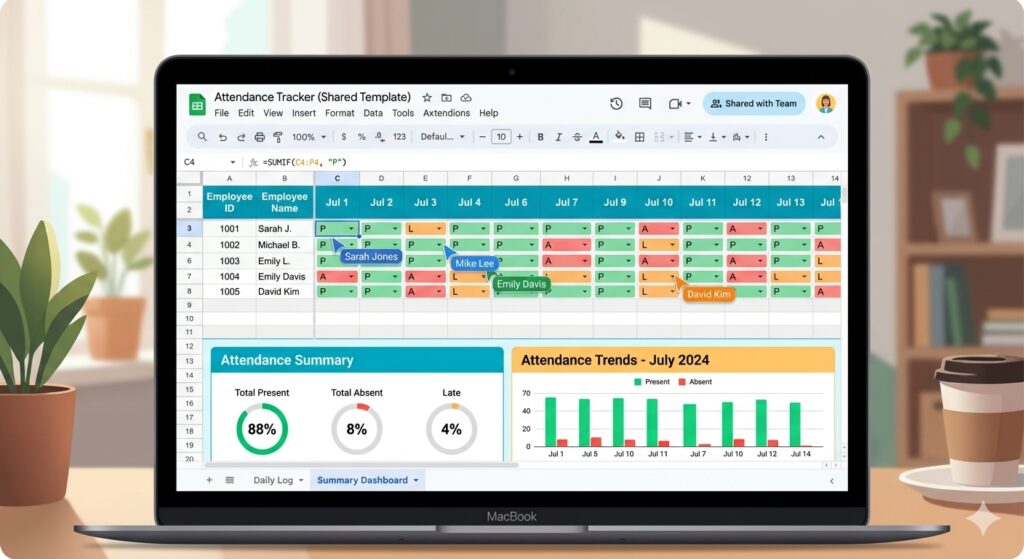
- Conditional formatting that colours present days green, absences red, and late arrivals yellow, providing instant visual insights.
- Automatic totals – COUNTIF or SUM formulas that calculate total present, absent, and late days per employee and per team.
- Attendance percentage – a simple division of present days by total working days, often displayed on a Summary tab.
- Leave‑balance tracking – columns for PTO, sick leave, and vacation that deduct from a pre‑set allowance.
- Print‑ready layouts for monthly or yearly hard‑copy records.
These elements are present across the free templates highlighted in the research, whether you download an Excel workbook, a Google Sheet, or a combined bundle.
Downloading the Free Excel Attendance Sheet
Most sites offering a free template provide a one‑click Download button that delivers a .xlsx file. Follow these steps to get started:
- Click the download link and save the file to a secure folder on your computer.
- Open the workbook in Microsoft Excel (any version from 2010 onward works).
- Enable macros if the template uses them for advanced calculations – most free versions rely solely on native formulas, so this is usually optional.
- Save a copy under a new name (e.g.,
MyCompany_Attendance_2024.xlsx) to preserve the original template for future use.
Once opened, you’ll see multiple tabs: Daily Log, Monthly Summary, and sometimes a Leave Tracker. The daily log is where you record each employee’s attendance; the summary aggregates the data into totals and percentages.
Setting Up the Google Sheets Version
Google Sheets offers instant collaboration, version history, and the ability to embed the sheet in internal portals. To use the free Google Sheets template:
- Click the Make a copy button on the provider’s page – this creates a personal copy in your Google Drive.
- Rename the file to reflect your organisation (e.g.,
Acme_Attendance_2024). - Adjust the Protected ranges if you want to lock header rows or formula cells.
- Invite managers or team leads as View‑only or Editor depending on the level of access required.
The real power of the Google version lies in its Summary tab, which updates automatically as you fill in daily rows. The template also includes a ready‑made chart that visualises attendance trends over the month.
Deep Dive: Core Columns and What They Mean
| Column | Description | Typical Formula / Validation |
|---|---|---|
| Employee Name | Full name of the staff member (or ID number). | Data validation list of active employees. |
| Department | Optional field for grouping reports. | Dropdown linked to a separate “Departments” sheet. |
| Date | Specific workday being logged. | =TODAY() for today’s row; DATEVALUE for past dates. |
| Status | Attendance code – P (Present), A (Absent), L (Late), SL (Sick Leave), VL (Vacation Leave), etc. | Data validation list; conditional formatting rules colour each code. |
| Time In / Time Out | Clock‑in and clock‑out timestamps (optional for hourly staff). | =TEXT(C2,”hh:mm”) for display; =IFERROR((D2‑C2)*24,0) for total hours. |
| Total Hours | Calculated work hours after deductions for breaks. | =ROUND((D2‑C2‑BreakTime)/TIME(1,0,0),2) |
| Notes | Free‑form field for reasons (e.g., doctor’s appointment). | None – plain text. |
By keeping the layout consistent, you enable formulas such as =COUNTIF(StatusRange,"P") to work across the entire sheet without manual adjustments.
How the Template Calculates Attendance Percentages
Attendance percentage is critical for performance dashboards and compliance reporting. The typical formula on the Summary tab looks like this:
=ROUND((SUMIF(StatusRange,"P") + SUMIF(StatusRange,"L"))/TotalWorkDays*100,1) & "%"In this expression:
- SUMIF(StatusRange,”P”) counts all present days.
- SUMIF(StatusRange,”L”) optionally adds late days (treated as partial presence).
- TotalWorkDays is a dynamic count of weekdays in the selected month, often calculated with
=NETWORKDAYS(StartDate,EndDate).
Both the Excel and Google Sheets versions include this formula pre‑filled, so you only need to verify the date range for each month.
Integrating Attendance Data with Payroll
Many businesses use separate payroll software, but the attendance template can act as a reliable source for exporting raw data.
- Filter the Daily Log for the month you are processing.
- Copy the relevant columns (Employee Name, Total Hours, PTO, etc.) into a CSV file.
- Import the CSV into your payroll system or share it with your accountant.
Some free templates go a step further by embedding a Salary Calculation tab that multiplies total hours by an hourly rate, deducts taxes, and even adds overtime premiums. If you need that level of detail, consider the Free vs Paid Attendance Software article for guidance on when an integrated payroll module is worthwhile.
Best‑Practice Tips for Using Free Attendance Templates
Even the best‑designed template can become a liability if used incorrectly. Follow these proven practices:
- Lock formula cells – use Excel’s Protect Sheet feature or Google Sheets’ Protected ranges to prevent accidental overwrites.
- Standardise status codes across the organisation; train managers on the dropdown list to avoid free‑text entries.
- Back up monthly – save a copy of the completed sheet at month‑end to create an audit trail. The Buddy Punching article explains how missing backups can mask fraudulent entries.
- Use colour wisely – green for present, red for absent, orange for late. Too many colours become confusing.
- Leverage the Summary tab for executive reporting – export the chart as an image and embed it in monthly HR newsletters.
Common Pitfalls and How to Avoid Them
Free templates are powerful but not infallible. Here are the most frequent issues and corrective actions:
| Issue | Impact | Solution |
|---|---|---|
| Incorrect date format (MM/DD vs DD/MM) | Formulas mis‑calculate workdays. | Set a uniform regional setting in Excel or Google Sheets (File → Settings). |
| Missing employee in the validation list | Manual entry creates typos and duplicate records. | Maintain a master Employee List sheet and reference it in all dropdowns. |
| Over‑writing formulas when copying rows | Totals become unreliable. | Use Excel’s Table feature or Google Sheets’ ArrayFormula to auto‑extend calculations. |
| Not accounting for public holidays | Attendance percentage appears lower than reality. | Include a Holiday column and exclude those days from NETWORKDAYS calculations. |
Free vs Paid Attendance Solutions – When to Upgrade
The free templates we described cover the core needs of most small‑to‑medium teams: daily logging, automated totals, and basic leave tracking. However, as organisations scale, they may encounter limitations such as:
- Multi‑site roll‑outs requiring a centralised cloud database.
- Advanced compliance reporting (e.g., GDPR audit logs).
- Biometric or mobile punch‑in integration.
- Real‑time alerts for excessive tardiness or unexpected absences.
When any of these features become essential, a dedicated attendance platform—like Attenzo—offers built‑in security, mobile apps, and seamless export to HRIS systems. The decision point is typically measured by the cost of errors versus the subscription price.
Step‑by‑Step: Customising Your Template for Your Business
Below is a quick checklist you can follow after downloading the template:
- Rename the workbook to match your company and fiscal year.
- Update the header with your logo, address, and contact person.
- Populate the employee list – copy names from your HR system into the “Employees” sheet.
- Configure status codes – add or remove codes (e.g., “WFH” for work‑from‑home) and adjust conditional formatting rules.
- Set the month range – ensure
StartDateandEndDatereflect the current payroll period. - Protect the formulas – lock the totals rows and any cells containing
=SUMIFor=NETWORKDAYS. - Test with sample data – enter a few rows, verify that totals and percentages update correctly.
- Share with managers – grant edit rights to team leads, view rights to executives.
Following these steps ensures the template works as a living document rather than a static file.
How to Use the Template for Different Tracking Periods
Daily Tracking
Enter each employee’s status at the end of the workday. The template’s row‑wise layout makes it easy to filter by date and spot patterns such as recurring Monday tardiness.
Weekly Summary
Duplicate the daily sheet, rename it “Week 1”, “Week 2”, etc., and adjust the date range. The weekly summary tab will automatically roll up each week’s totals, helping supervisors plan workload distribution.
Monthly Overview
The built‑in “Monthly Summary” tab aggregates all daily entries for the selected month, calculates the overall attendance percentage, and displays a bar chart. Export this chart for board‑level presentations.
Year‑Long Tracking
Copy the month tabs into a single workbook for a full‑year view. Use the =SUM function across months to compute annual leave balances and overtime accruals.
Wrapping Up: Your Free Attendance Template Is Ready
With a free Excel or Google Sheets attendance sheet at your fingertips, you now have a cost‑effective, customizable tool that brings order to employee presence data. By following the setup guide, protecting formulas, and regularly backing up your files, you can avoid the common mistakes that lead to payroll errors and compliance headaches.
Remember that a spreadsheet is only as good as the processes around it. Pair your template with clear company policies, regular audits, and, when growth demands it, consider a dedicated platform like Attenzo for automatic time‑tracking, mobile punch‑in, and advanced analytics.
Download the template today, customise it for your team, and start turning raw attendance data into actionable insights.