September 15, 2026
Employee Attendance Register Format: Free Template & Automation Guide
Why a Structured Attendance Register Matters
Accurate attendance data is the backbone of payroll, compliance, and workforce planning. Whether you run a three‑person startup or a multi‑site enterprise, a well‑designed attendance register helps you answer three critical questions every day:
- Who was scheduled? – The register lists every employee expected to work.
- Who actually showed up? – Check‑in/check‑out timestamps capture real presence.
- What does the data mean for payroll and compliance? – Automated totals and codes translate raw timestamps into billable hours, leave balances, and audit‑ready reports.
When these questions are answered consistently, you reduce payroll errors, spot chronic absenteeism early, and stay compliant with labor regulations. For many small businesses, the most accessible way to achieve this is with a free spreadsheet template. Below we walk through the essential components of an Attendance Register Format, show you a ready‑to‑use template, and explain the exact moment you should consider moving to an automated solution.
Core Elements of an Attendance Register Format
A solid register balances simplicity with enough detail to support downstream processes. The following columns are considered industry‑standard, based on the most widely‑downloaded free templates (see research sources [1]‑[5]):
| Column | Purpose | Typical Data Type |
|---|---|---|
| Employee ID / Name | Unique identifier for each worker | Alphanumeric |
| Department / Location | Helps group attendance for reporting | Text or dropdown |
| Date | Day of the attendance record | Date format (MM/DD/YYYY) |
| Check‑In Time | First clock‑in of the shift | Time (HH:MM) |
| Check‑Out Time | Last clock‑out of the shift | Time (HH:MM) |
| Break Duration | Unpaid or paid break minutes | Number (minutes) |
| Total Hours | Auto‑calculated hours worked | Formula (hours) |
| Status Code | Quick visual of presence (P, A, L, H, etc.) | Dropdown / checkbox |
| Remarks | Notes such as “Late due to traffic” | Free‑text |
These fields cover everything from basic presence tracking to overtime calculation, making the register suitable for daily, weekly, or monthly aggregation.
Free Attendance Register Template – What It Looks Like
The template linked below is a ready‑made Excel/Google Sheets file that includes the columns above, pre‑filled formulas for total hours, and a summary tab that rolls up attendance percentages for each employee.
Free vs Paid Attendance Software: What Small Businesses Need provides a quick download link and a short video walk‑through.
Key features of the free template:
- Built‑in
COUNTIFformulas that tally present, absent, and late days. - Automatic attendance percentage that excludes weekends and public holidays.
- Dropdown status codes that can be edited to match your company policy.
- A summary worksheet that displays total hours, overtime, and leave balances per employee.
Because the file lives in Google Sheets, multiple managers can edit it simultaneously, and you can set view‑only permissions for auditors.
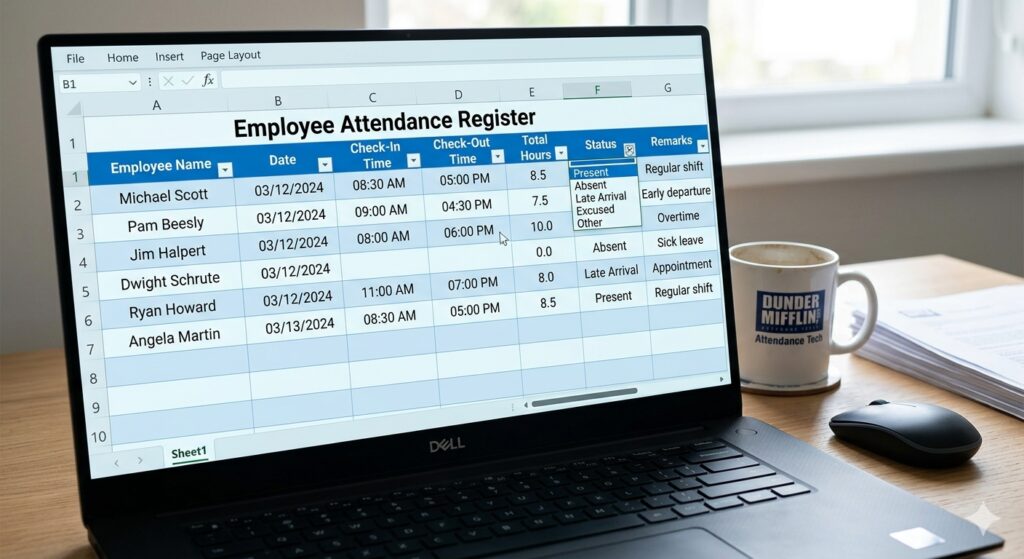
While the spreadsheet is powerful for small teams, it does have well‑understood limitations—most of which become prohibitive once you cross the 30‑employee threshold or introduce flexible remote work.
Customising the Template for Your Business
Every organization has unique policies, and the free template is deliberately modular. Here’s a step‑by‑step guide to tailoring it without breaking the built‑in formulas:
- Rename the status codes. Open the “Codes” tab and replace the default list (P‑Present, A‑Absent, L‑Late, H‑Holiday) with your own abbreviations. The dropdowns on the main sheet will update automatically.
- Add a shift column. Insert a new column after “Department” called “Shift” and populate it with values such as “Day”, “Swing”, or “Night”. Update the summary formulas to include this column if you want shift‑specific totals.
- Configure overtime rules. In the “Settings” sheet, define the daily overtime threshold (e.g., 8 hours). Use an
IFstatement in the “OT Hours” column to calculate overtime automatically. - Protect formula cells. Select the cells containing formulas, right‑click, choose “Protect range”, and set editing rights to admins only. This prevents accidental overwrites.
- Link to your payroll system. Export the summary tab as CSV each month and import it into your payroll software. Most modern payroll packages accept a simple CSV with employee ID, hours, and overtime columns.
These tweaks keep the spreadsheet functional while aligning it with internal policies.
When a Spreadsheet Becomes a Bottleneck
Free templates are a fantastic starting point, but they start to show cracks as organizational complexity grows. Common pain points documented across multiple sources ([5], [6], [9], [14]) include:
- Manual entry errors. Employees forget to fill in codes, leading to inaccurate payroll. The “Buddy Punching” article on our blog explains how such gaps can cost businesses hundreds of dollars in untracked hours.
- Scaling challenges. Adding a new site means duplicating sheets, managing version control, and reconciling multiple files.
- Lack of real‑time visibility. Managers only see yesterday’s data; they cannot intervene when an employee constantly arrives late.
- Poor integration. Export‑import loops between the sheet and HRIS are error‑prone and time‑consuming.
When any of these symptoms appear regularly, it’s a clear sign that automation will deliver a measurable ROI.
Criteria for Moving to an Automated Attendance System
Automation is not a blanket solution; it should be introduced when the benefits outweigh the implementation cost. Use the checklist below to decide:
| Trigger | Why It Matters |
|---|---|
| >30 employees or multiple locations | Spreadsheet management overhead rises exponentially. |
| Frequent remote or field work | Geolocation‑based check‑ins prevent buddy‑punching. |
| High overtime or shift‑swap volume | Automatic calculations reduce manual re‑conciliation. |
| Regulatory audits | Auditable logs and digital signatures satisfy labor law requirements. |
| Desire for real‑time dashboards | Instant visibility enables proactive scheduling. |
If you answer “yes” to two or more rows, start evaluating an automated platform.
Benefits of an Automated Attendance Solution
Modern cloud‑based attendance tools—such as Attenzo—provide a suite of capabilities that go far beyond the static spreadsheet.
- Biometric or GPS‑based clock‑ins. Eliminates buddy‑punching and provides verifiable proof of location.
- Real‑time alerts. Managers receive push notifications for late arrivals, missed punches, or overtime breaches.
- Integrated payroll feeds. Hours flow directly into your payroll engine, cutting processing time by up to 80% (source: internal case studies).
- Analytics dashboards. Trend charts highlight absenteeism spikes, overtime hot‑spots, and compliance gaps.
- Self‑service portals. Employees can view their own attendance history, request leave, and correct minor errors, reducing admin tickets.
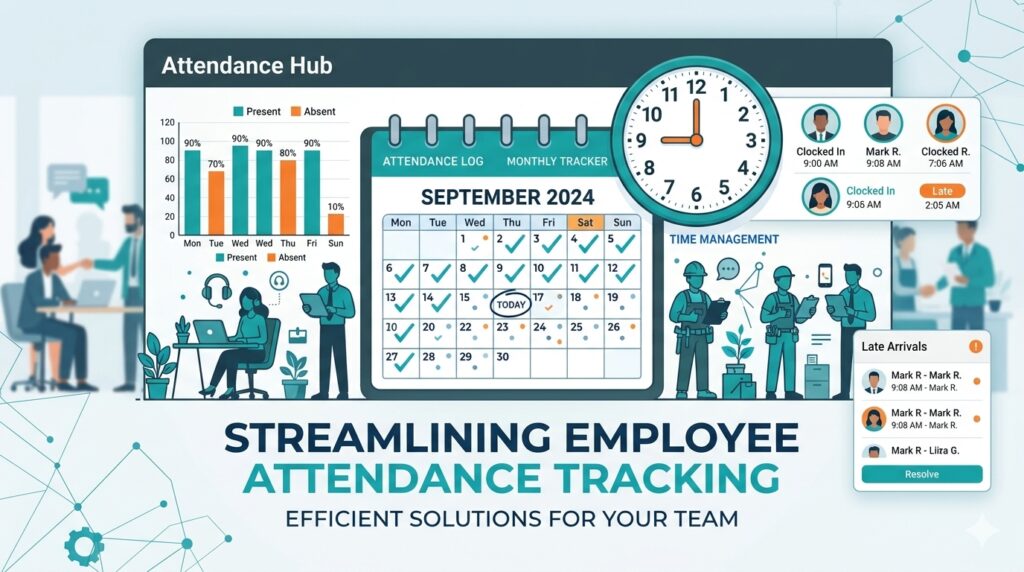
Automation also strengthens data security. Cloud platforms enforce role‑based permissions, version history, and encrypted storage—features that are difficult to retrofit into a spreadsheet.
Choosing the Right Automated Platform
When evaluating vendors, keep the following criteria in mind:
- Ease of migration. Look for CSV import tools that map directly to your existing spreadsheet columns.
- Mobile friendliness. A responsive app is essential for field workers or remote teams.
- Integration ecosystem. Native connectors to popular payroll (ADP, Gusto), HRIS (BambooHR, Workday), and accounting software reduce custom API work.
- Compliance support. The platform should generate audit‑ready logs that comply with FLSA, GDPR, or local labor laws.
- Scalable pricing. Many providers charge per active user; ensure the model stays affordable as you grow.
Attenzo, for example, offers a free‑tier for up to 10 employees, automatic QR‑code check‑in, and a built‑in leave manager—all without the need for a separate HRIS.
Step‑by‑Step Migration from Spreadsheet to Automation
- Export your current register. Use the “File → Download → CSV” option on your Google Sheet.
- Clean the data. Remove empty rows, verify that status codes match the target system’s list, and ensure dates are in ISO format (YYYY‑MM‑DD).
- Import into the new platform. Most solutions have a bulk‑import wizard that maps columns to fields (Employee ID → ID, Check‑In → Clock‑In, etc.).
- Run a parallel test. Keep the spreadsheet live for one payroll cycle while the automated system records actual punches. Compare totals to confirm accuracy.
- Train the team. Conduct a short webinar, provide quick‑start guides, and set up a help‑desk channel for the first two weeks.
- Retire the spreadsheet. Archive the final version for audit purposes, then delete edit permissions to avoid duplicate data entry.
By following this roadmap, you can transition with minimal disruption and quickly reap the efficiency gains of automation.
Best Practices for Ongoing Attendance Management
- Standardise status codes. Keep a single legend across all tools. Change codes in one place and propagate.
- Schedule regular audits. Quarterly checks compare automated logs with payroll reports to catch any drift.
- Leverage alerts. Set thresholds for repeated lateness (e.g., three incidents in 30 days) and automate email reminders.
- Maintain backup copies. Export a monthly CSV backup from the automated system; store it in a secure cloud bucket.
- Encourage employee ownership. Allow staff to view and correct minor mistakes through a self‑service portal, reducing administrative overhead.
FAQs
Do I need a separate attendance register if I already use time‑tracking software?
Most modern time‑tracking tools include built‑in attendance logs, but you may still need a register for compliance reporting (e.g., to meet local labour‑law record‑keeping). Ensure the software can export the required format.
Can I keep using a spreadsheet for a few departments while automating others?
Yes, hybrid setups are common during transition. However, be mindful of data silos; use a common employee master file to keep IDs consistent across both systems.
Is a free template sufficient for remote teams?
For fully remote teams, manual entry becomes risky because you cannot verify location. Automation with GPS‑based check‑ins provides the necessary validation.
How long does it take to see a ROI after automating attendance?
Businesses typically observe a 20‑30% reduction in admin hours within the first month, plus fewer payroll errors that can cost $200‑$500 per month in re‑work.
Conclusion
An Attendance Register Format built on a free spreadsheet template offers an immediate, cost‑free way to capture basic presence data. It works best for teams under 30 employees, static schedules, and low‑risk compliance environments. As soon as you encounter manual‑entry errors, scaling hurdles, or the need for real‑time insights, the moment is right to automate.
By following the customisation tips, migration roadmap, and best practices outlined above, you can turn a simple Excel sheet into a robust, auditable attendance system—or seamlessly upgrade to a dedicated platform like Attenzo. Either way, you’ll gain clearer visibility into workforce attendance, lower payroll risk, and free up valuable HR time to focus on strategic initiatives.
Ready to try a free template? Create your organization – free attendance & leave management today and explore how effortless automated attendance can be.