September 15, 2026
Free Employee Attendance Templates: Daily, Weekly & Monthly
Why a Structured Attendance Template Matters
Accurate attendance records are the backbone of any payroll, compliance, and workforce‑planning strategy. Whether you run a small boutique agency or a mid‑size manufacturing plant, the ability to see who showed up, who was late, and who took leave at a glance saves time, reduces errors, and protects your business from costly labor disputes. A well‑designed template turns raw data into actionable insight, giving managers a clear view of attendance patterns, overtime trends, and potential compliance gaps.
Free templates provide an immediate start without the expense of a full‑blown time‑tracking system. They can be downloaded, customized, and shared across Excel, Google Sheets, or even printed for manual use. Below we dive into three core formats—daily, weekly, and monthly—explain the essential columns, show how to automate totals, and give step‑by‑step instructions for personalizing the sheets to your organization’s unique policies.
Overview of the Three Core Formats
Each format serves a specific purpose in the employee‑attendance lifecycle. Selecting the right one (or a combination) depends on your payroll cadence, the granularity of reporting you need, and the nature of your workforce.
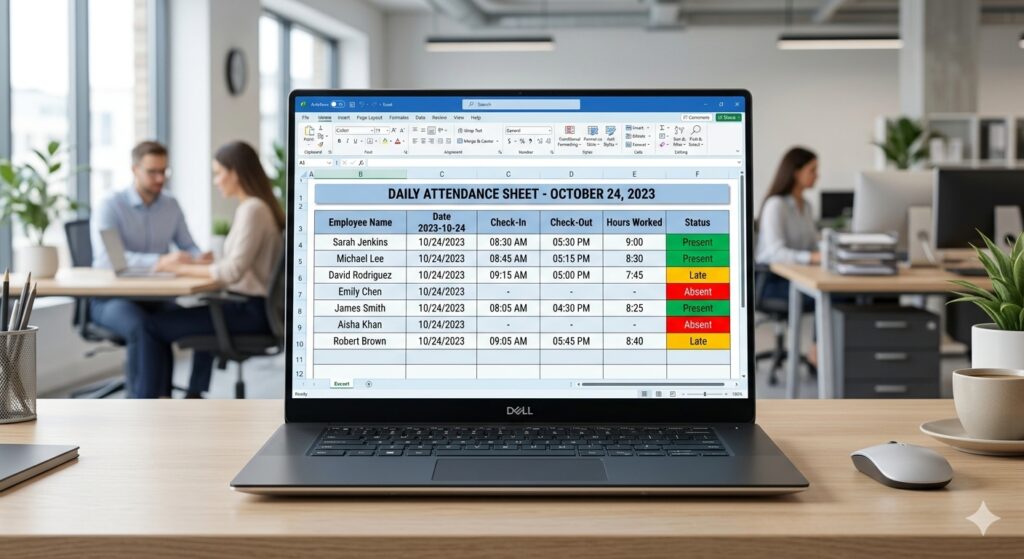
- Daily Sheet – Ideal for shift‑based environments, on‑site crews, or any operation where attendance needs to be captured as it happens. It records precise check‑in/out times and can calculate daily hours automatically.
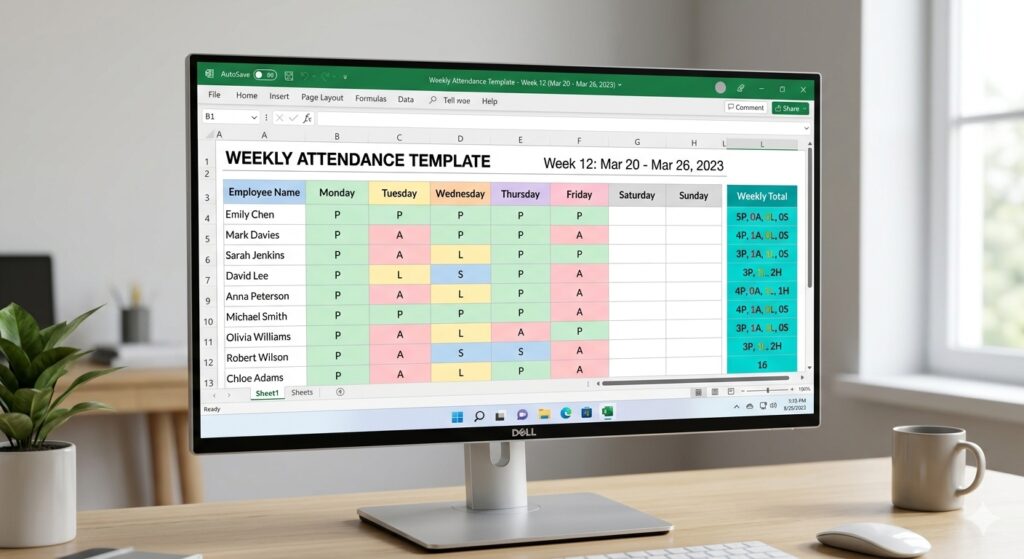
- Weekly Sheet – Suits businesses that run weekly payroll or need a concise view of attendance across a 5‑ or 7‑day period. It aggregates daily status codes (P, A, L, S) and provides a quick total of hours worked per employee.
- Monthly Sheet – Best for strategic HR analysis, compliance reporting, and annual audit preparation. It displays an entire calendar month, making it easy to spot trends such as chronic lateness or seasonal absenteeism.
Deep Dive: Daily Attendance Template
The daily template is the most granular. Below are the typical columns you’ll find, and why each matters:
| Column | Purpose |
|---|---|
| Employee Name / ID | Identifies the worker; using an ID reduces duplicate name issues. |
| Date | Ensures each row is tied to a specific calendar day. |
| Check‑In | Captures the exact time the employee started work. |
| Check‑Out | Captures the exact time the employee finished work. |
| Break Duration | Subtracts unpaid break time from total hours. |
| Total Hours | Calculated via =(Check‑Out‑Check‑In)‑Break; feeds payroll. |
| Status | Dropdown (Present, Absent, Late, Sick, Vacation) for quick entry. |
| Remarks | Free‑text field for notes such as “Late due to traffic”. |
Most free templates include built‑in conditional formatting: green cells for “Present,” red for “Absent,” and yellow for “Late.” This visual cue cuts the time needed to scan rows and instantly highlights problem areas.
To automate totals, insert a SUMIF formula at the bottom of the “Total Hours” column, summing only rows where the Status is “Present” or “Late.” This ensures overtime calculations are based on actual work time, not on days marked as “Absent”.
Deep Dive: Weekly Attendance Template
The weekly sheet condenses seven days into a single row per employee, making it ideal for supervisors who need a quick snapshot before approving payroll.
Key components include:
- Week Header – Shows the date range (e.g., “Week 12: 20‑Mar to 26‑Mar”).
- Daily Status Columns – One column per day (Mon‑Fri or Mon‑Sun) where you record the status code.
- Weekly Hours Total – Uses a
SUMof daily hour calculations. - Notes – Space for supervisor comments or approval signatures.
Because the template is compact, you can place it side‑by‑side with a shift‑assignment sheet, enabling managers to verify that scheduled shifts match recorded attendance.
Most free weekly templates also provide a small chart that visualizes the percentage of days each employee was present, offering an at‑a‑glance performance metric.
Deep Dive: Monthly Attendance Template
When your HR team prepares end‑of‑month reports or needs to audit leave balances, a month‑wide view is indispensable. The monthly template typically resembles a calendar matrix, with dates across the top and employee names down the left.
Standard columns include:
- Daily Status – Single‑character codes (P, A, L, S, V) for each date.
- Weekly Sub‑Totals – Optional rows that summarize attendance every seven days, helping spot mid‑month dips.
- Monthly Totals – Formulas that calculate total present days, total absent days, and overall attendance percentage.
- Leave Balances – Additional columns that deduct approved vacation or sick leave from annual entitlements.
- Sign‑off Section – A place for the employee and manager to initial, creating an auditable record.
Color‑coding remains essential: use light green for present days, light red for absences, and orange for late arrivals. With the COUNTIF function, you can auto‑populate the totals without manual counting.
Customizing Templates for Your Business
Even the best free template is only as useful as its alignment with your internal policies. Here are five practical customization steps you can apply to any of the three formats:
- Add a Department or Shift column – This allows you to filter attendance by team, making it easier to generate department‑specific reports.
- Implement dropdown validation – Use Excel’s Data Validation feature to limit status entries to your predefined codes. This reduces typos and ensures that
COUNTIFcalculations stay accurate. - Include automated leave accruals – Link the monthly sheet to a separate “Leave Balance” worksheet that subtracts used vacation days each month.
- Insert a protected “Lock” button – Some free templates come with macros that lock the sheet after the payroll period ends, preserving the data for audit purposes.
- Create a summary dashboard – Pull key metrics (overall attendance %, average lateness minutes, overtime hours) onto a separate dashboard sheet using PivotTables or simple formulas.
These tweaks turn a generic spreadsheet into a tailored HR tool, while still keeping the solution cost‑free.
Integrating Free Templates with Modern Attendance Software
Free templates are a solid start, but many organizations eventually outgrow manual entry. That’s where platforms like free vs paid attendance software come into play. You can import your Excel data into a cloud‑based system for real‑time tracking, automated approvals, and mobile check‑ins. Even if you stay with spreadsheets, connecting them to a simple API (e.g., through Zapier) can auto‑populate rows from a digital clock‑in tool, dramatically cutting down data‑entry time.
Another common pitfall is buddy punching, where employees clock in for one another. By incorporating a column for “Supervisor Approval” or by using a digital signature field, you can mitigate this risk even in a basic spreadsheet.
Step‑by‑Step Quick‑Start Guide
Below is a concise four‑step process that works for any of the free templates:
- Download the template – Choose the daily, weekly, or monthly version that matches your payroll cycle. All templates are available in both Excel and Google Sheets formats.
- Set up your master employee list – On the first sheet, list each employee’s name, ID, department, and employment type. Use this list to populate a dropdown in the attendance sheet via
Data ► Validation ► List from a range. - Enter daily data – As each shift ends, fill in check‑in/out times and select the appropriate status. The built‑in formulas will calculate total hours and update weekly/monthly totals automatically.
- Review, lock, and archive – Once the payroll period closes, run a quick audit (filter for any red‑colored “Absent” or orange “Late” cells). Then protect the sheet to prevent further edits and save a copy in a dedicated “Attendance Archive” folder.
Following these steps ensures consistency, reduces manual errors, and creates a reliable audit trail.
Best Practices for Maintaining Accurate Records
Even with a perfect template, discipline is required. Here are six best‑practice tips to keep your attendance data clean:
- Standardize status codes – Stick to a limited set such as P, A, L, S, V. Train supervisors to use the dropdowns exclusively.
- Validate dates – Use the
WORKDAYfunction to automatically flag weekends and public holidays. - Back up regularly – Save a copy to cloud storage (OneDrive, Google Drive) after each payroll run.
- Conduct monthly spot checks – Randomly verify 5‑10% of entries against actual time‑clock logs.
- Document policy changes – If you add a new leave type, update the legend and formulas immediately.
- Educate employees – Provide a short guide that explains how to read the sheet, why accurate reporting matters, and where to raise concerns.
By embedding these habits into your routine, the spreadsheet becomes a trustworthy source of truth rather than a source of frustration.
Downloading the Templates
All three templates are available for instant download without any registration. Click the links below to get the Excel (.xlsx) version, or use the corresponding Google Sheets copy link to start editing online:
- Daily Attendance Template – Excel
- Weekly Attendance Template – Google Sheets
- Monthly Attendance Template – PDF (print‑ready)
Each file comes with pre‑configured dropdowns, color‑coding, and protected cells, so you can start logging attendance from day one.
Conclusion: From Free Spreadsheet to Strategic Asset
Free daily, weekly, and monthly attendance templates provide a low‑cost entry point for any organization seeking reliable time‑keeping. By customizing the core columns, automating calculations, and applying best‑practice governance, you transform a simple spreadsheet into a strategic HR asset that powers accurate payroll, compliance reporting, and data‑driven workforce planning.
Ready to streamline your attendance process? Download the templates today, tailor them to your policies, and experience the difference that organized data can make for your business. For deeper insights on leveraging attendance data, explore the rest of the Attenzo blog or consider upgrading to a cloud‑based solution when your needs outgrow manual sheets.